

--------------------------------------------------------------------------------
Turn on Ibis Paint as you normally would and add a canvas!
(I made a cover and a title, but today I only made a title because it was an example)
Please click on the brush shape to enter text!
Drag the layer under the text layer and place it on top of the text layer, then clip it.
Please color it in and merge the layers!

Click this button to add a layer and then move it down.
(The reason I'm adding a layer is because there are parts that need to be erased when drawing the horns!)
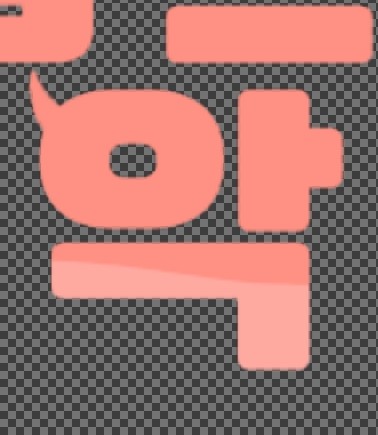
Draw and color the horn shape where you want to add a point and where you think it fits.
The shape isn't perfect, so please erase it a few times and fill in any missing parts!
If you draw one horn

Press this child to copy the horn layer!
(I originally used a symmetry ruler, but I still have trouble using the symmetry ruler, so I copied the layer for your convenience.)
Press this child and rotate the copied horn layer in the opposite direction!

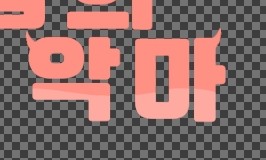
Before you copy the layer you copied by pressing this, place it on the next letter of the letter under the green horn!
Good morning
When you are done, merge all the layers and decorate them with strokes, drop shadows, etc. and save them as transparent PNG.
It comes out like this
--------------------------------------------------------------------------------
With the delayed return to school fast approaching, my academy homework has piled up, leaving me with less time on my phone. So, I'm uploading a simple cover art for school. If you've requested a cover, please be patient. I'll adapt quickly and get it done quickly.
Thank you for watching!
Everyone, please become a better Diamond Son than me!