

--------------------------------------------------------------------------------
As always, turn on Ibis and add a canvas!
Load the photo, go to the filter and make some simple corrections.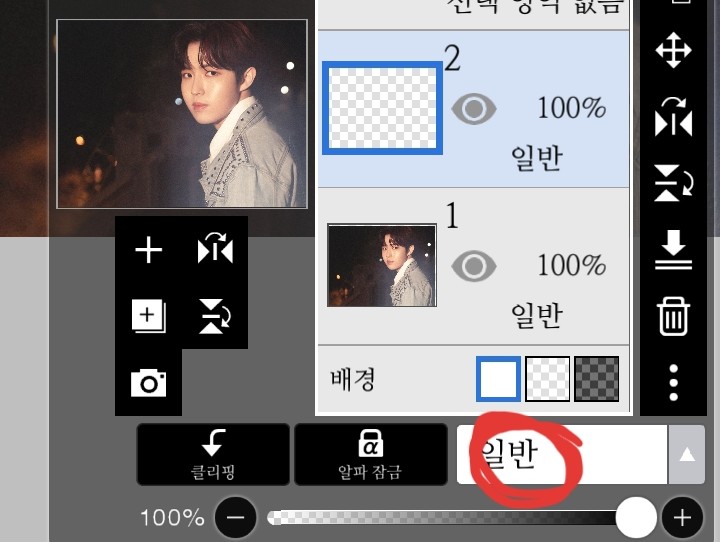
Click on the box that says General above the transparency.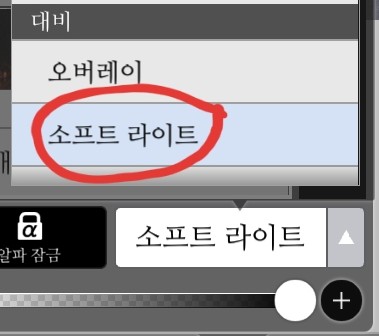
Please change the contrast to soft light!
Change the brush color to pink and paint it in a sweeping manner.
Yorokorom is coming out!
Go back into the filter and click on the text and enter some text (I used the default font!)
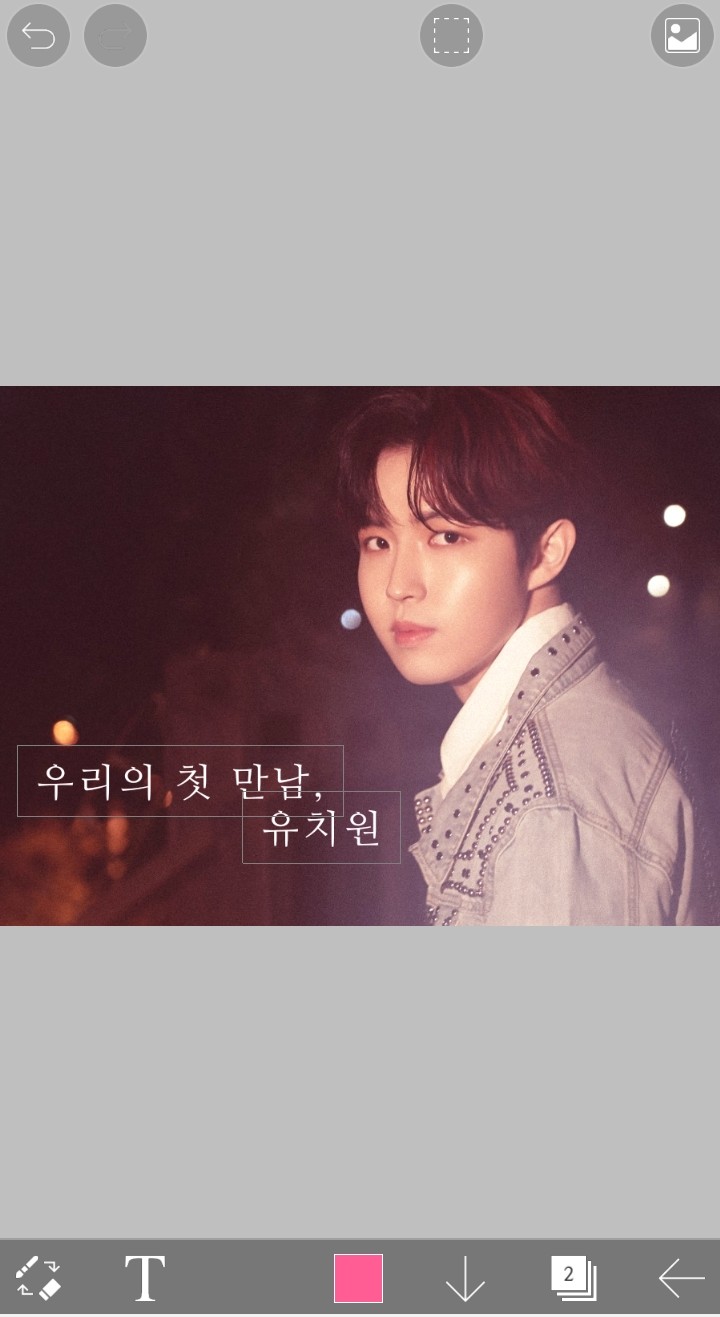
Once the text is entered like this, add a layer and merge it with the text layer! (This is a required step 😭 If you don't do this, you won't be able to use the filter.)
After merging the text layer and the normal layer, go to the filter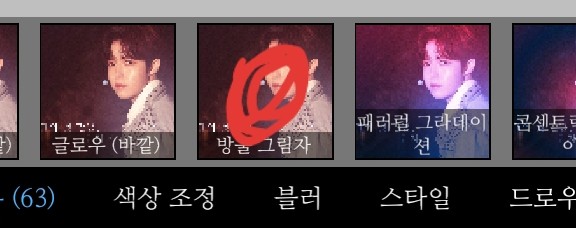
Choose the drop shadow!
(In my case, I mainly use bright colors, so I don't think it will be visible if I just add color, so I use black as the base color.)
Select the drop shadow, increase the radius to the maximum, and kill the angle and distance!
If you decorate all the letters
The cover looks like this!
(This process is not required)
I thought the previous cover was too plain, so I saw an ad and decorated it using a flower brush!
Add a layer, put some flowers on it, add another layer, fill it with light pink using clipping, merge it, and adjust the transparency to get the cover.
It comes out like this
--------------------------------------------------------------------------------
I took a picture of the flower brush because it seemed too plain, but now that I look at it, it's prettier if I didn't take a picture ㅠ
Thank you for watching!
Everyone, please become a better diamond hand than me!