
Just looking at the picture X
If you read the article👍
In this lesson, I will teach you how to use Ibis Paint X, an app used for drawing.

This is the app
1. Create a canvas
(1)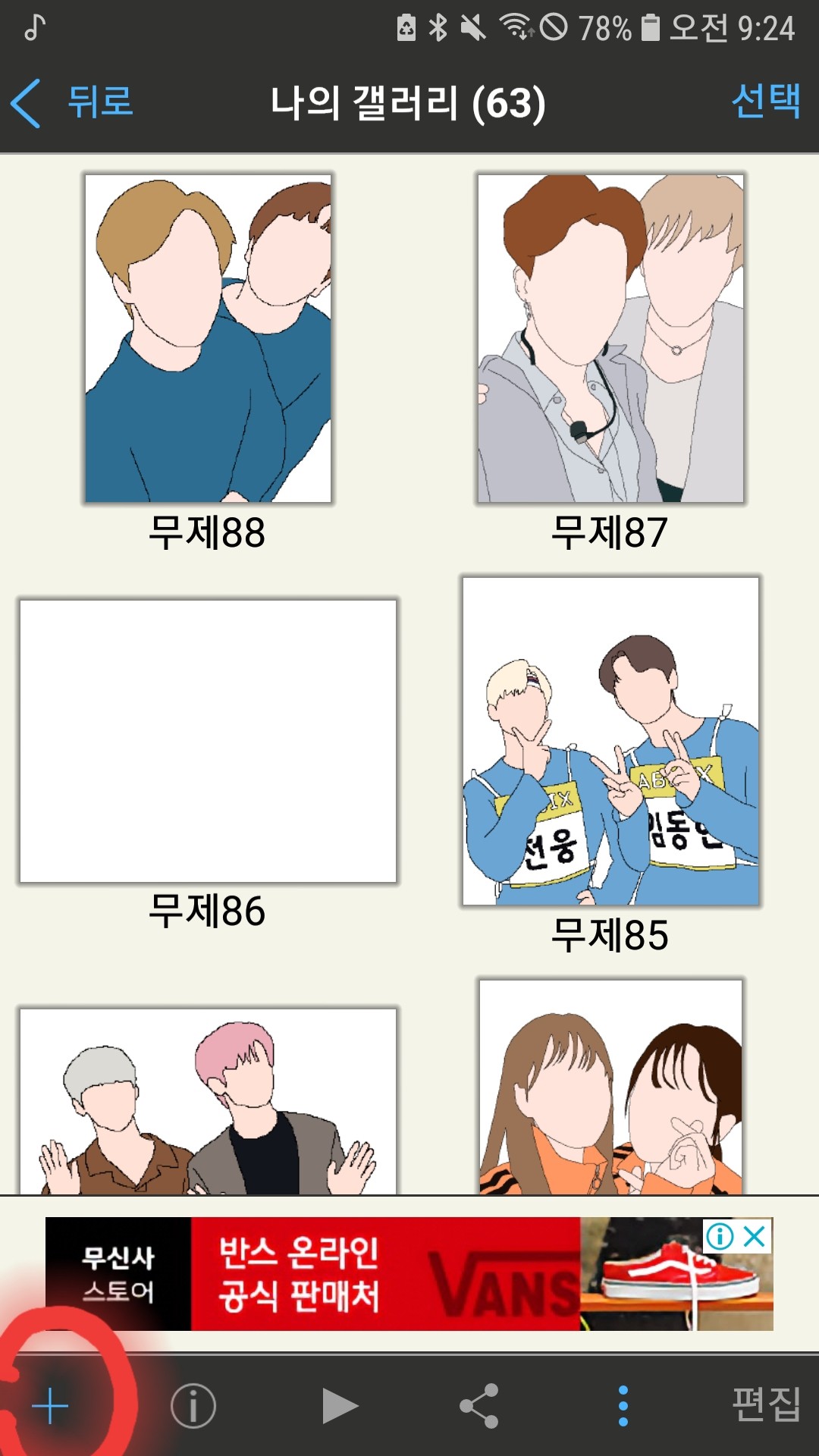
touch
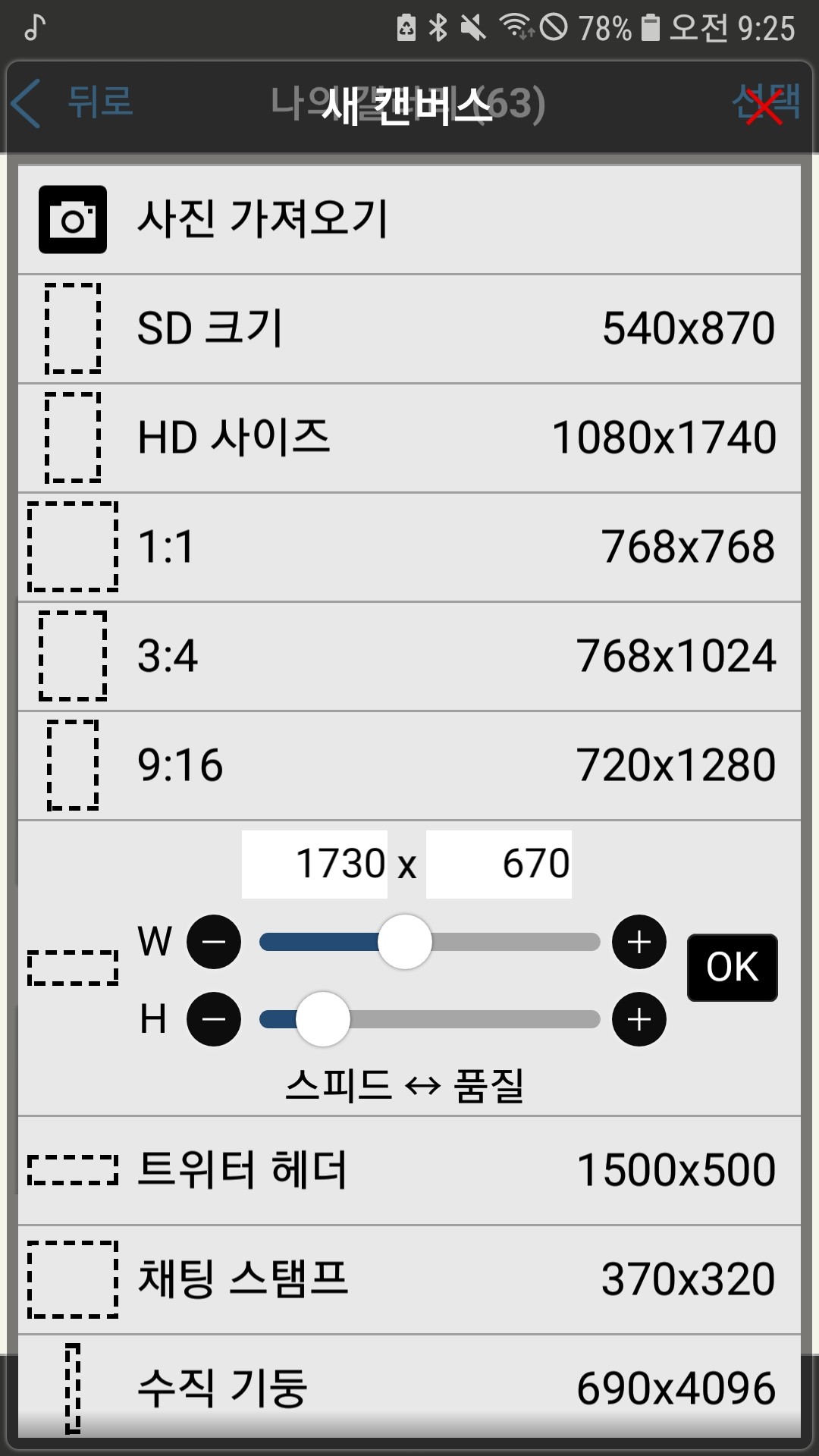
Something like this will appear
Please choose what you want
For now, I'll choose 1:1

The canvas has been created!
2. Tools
(1) Tools currently in use
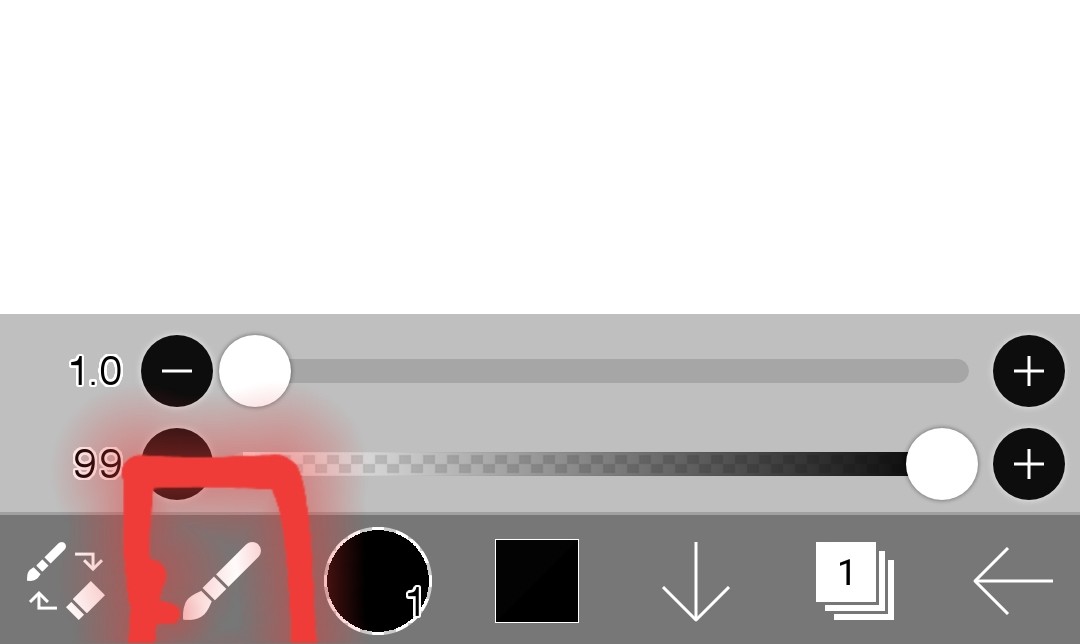
If you look here, you can see what tools we are using right now.
(I'm using a fan now!)
(2) Easy to change fans and erasers
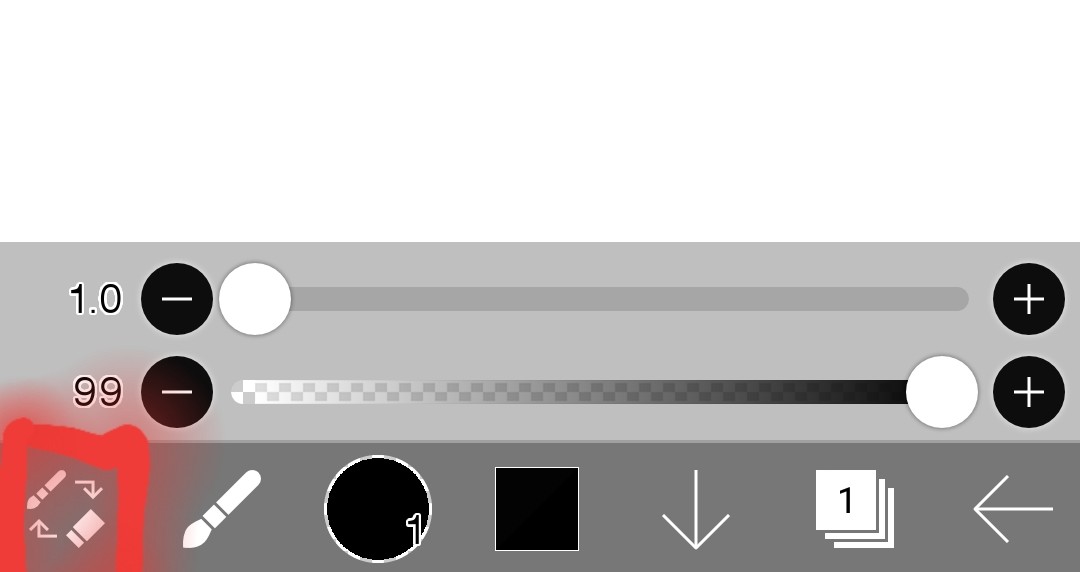
You can easily switch between eraser and pen by touching here.

I changed it
(Tap once more to change to a fan)
(3) Where the tools are
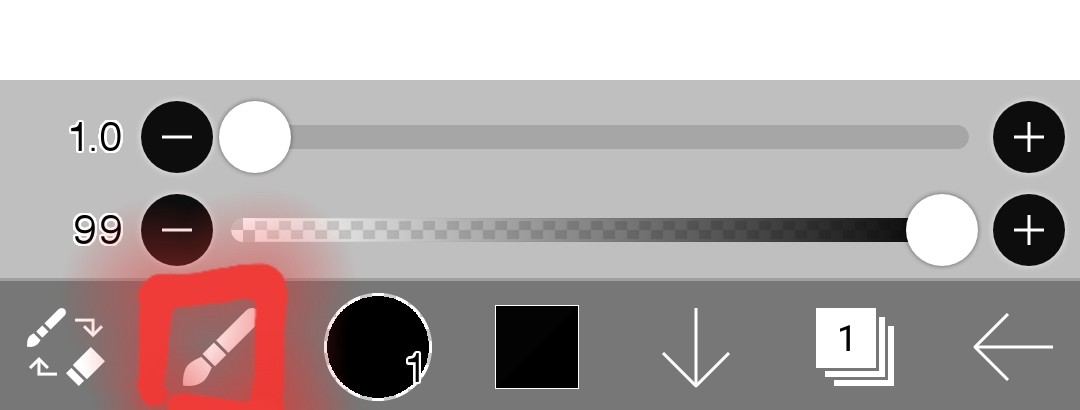
If you touch here
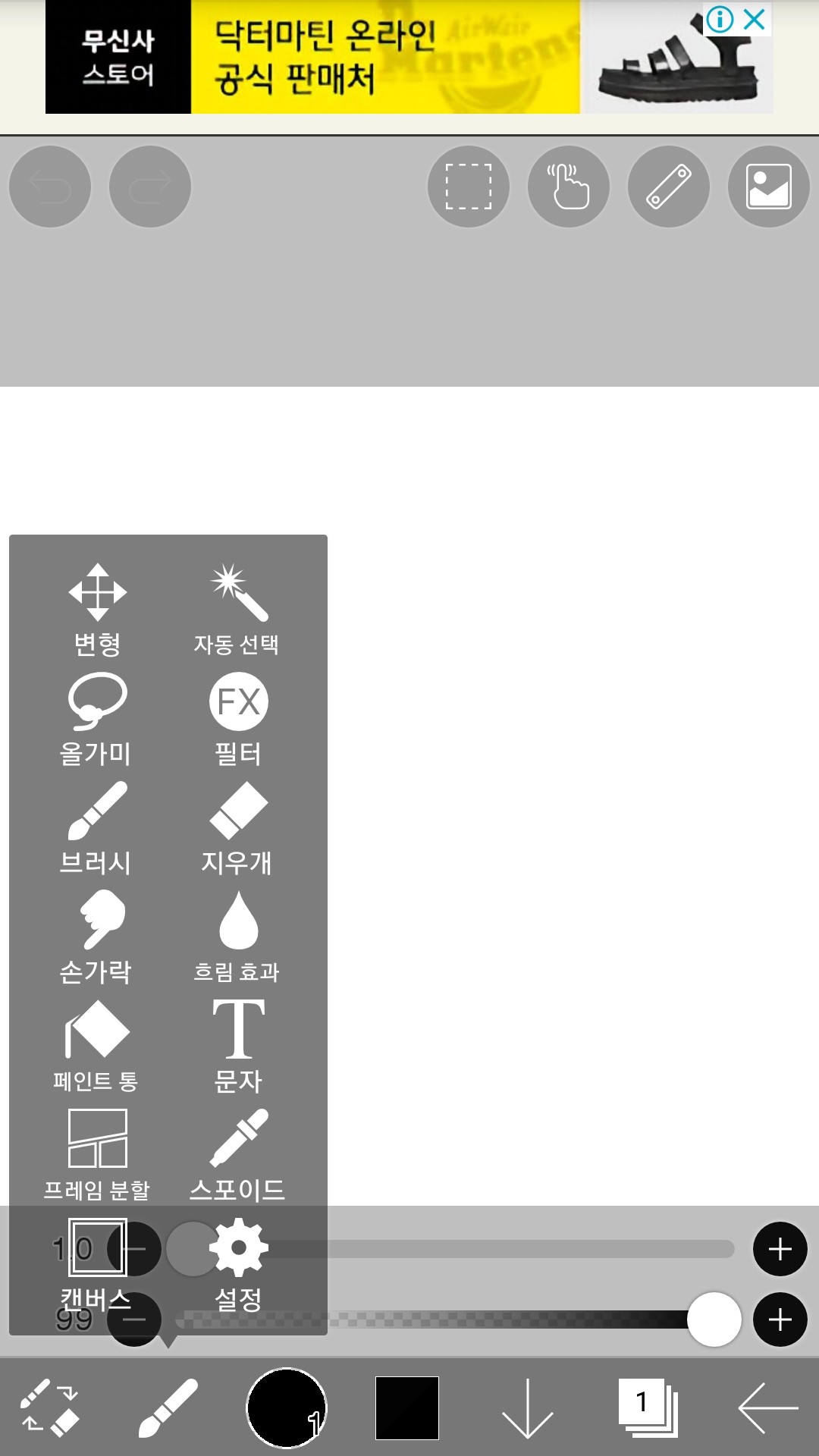
Several tools will appear
How to use these toolsDevelopmentLet me tell you (just the basics for now)
(4) Brush

Touch here
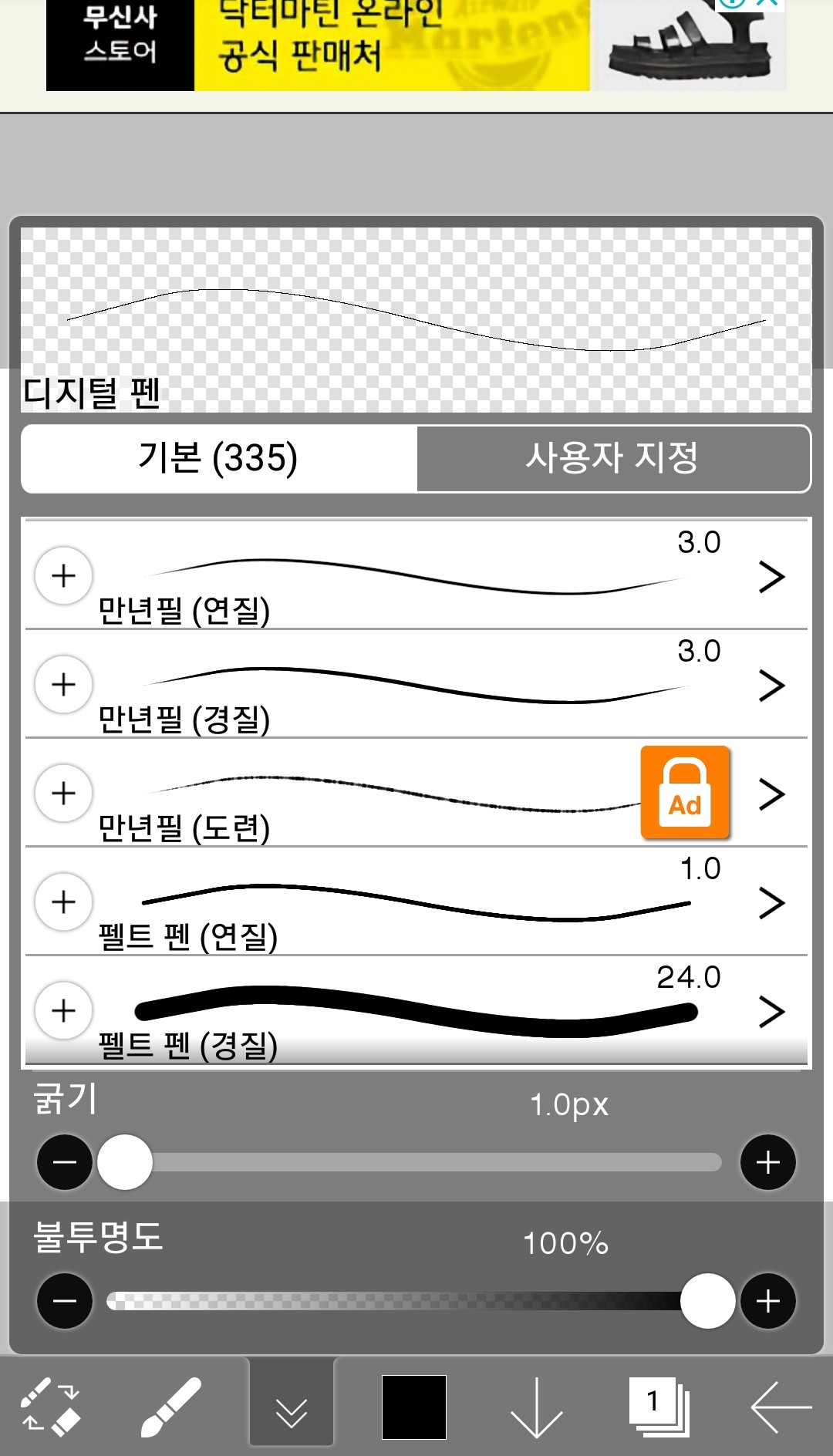
Then it will appear like this
Choose the fan you are most comfortable with among many fans (locked ones can be unlocked by paying or watching ads)
For reference, Idigital fansecond suggestiondo!
The digital fan has a consistent thicknessVery neatI can draw it
(5) Color

Touch here
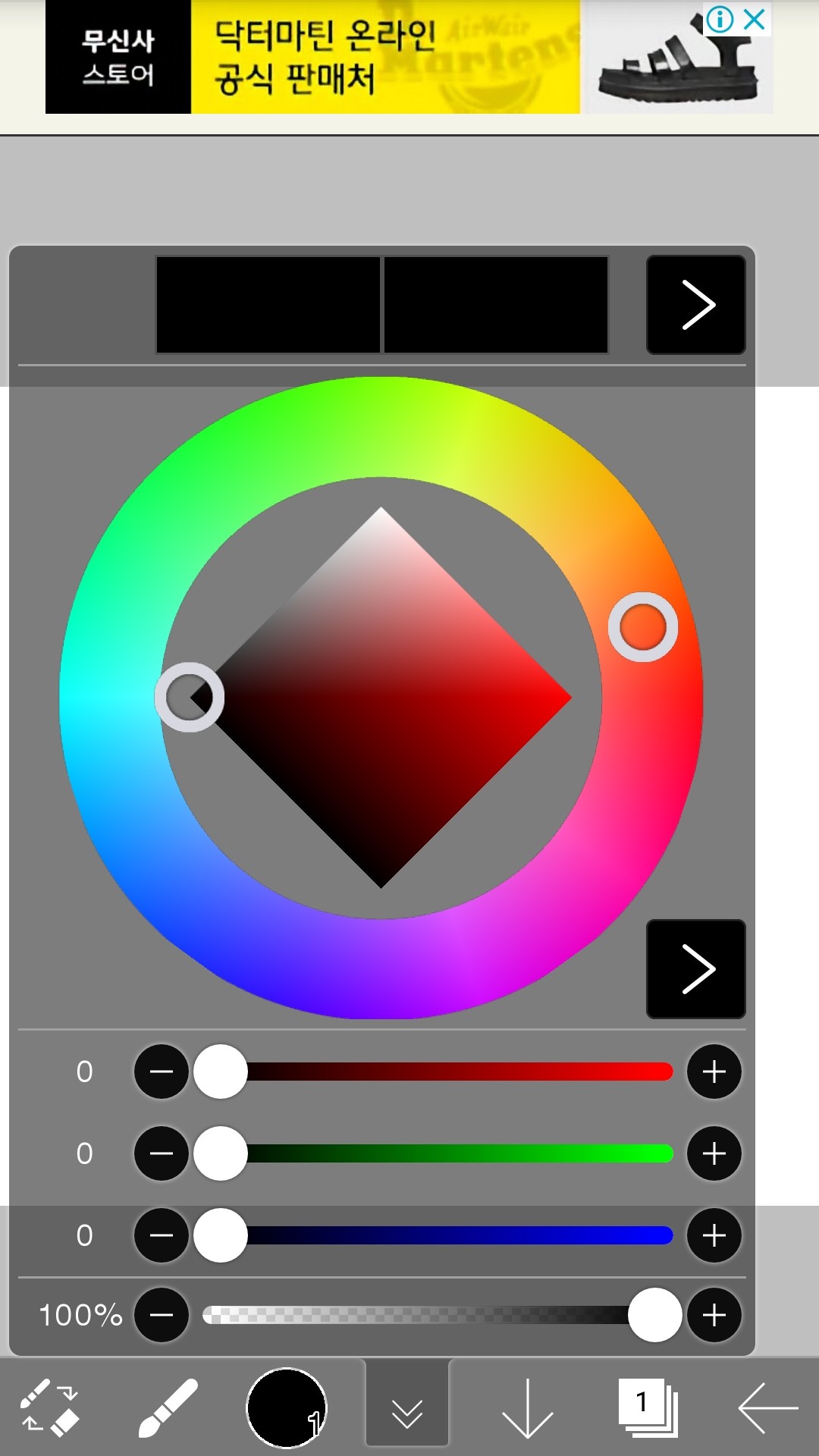
Then it comes out like this
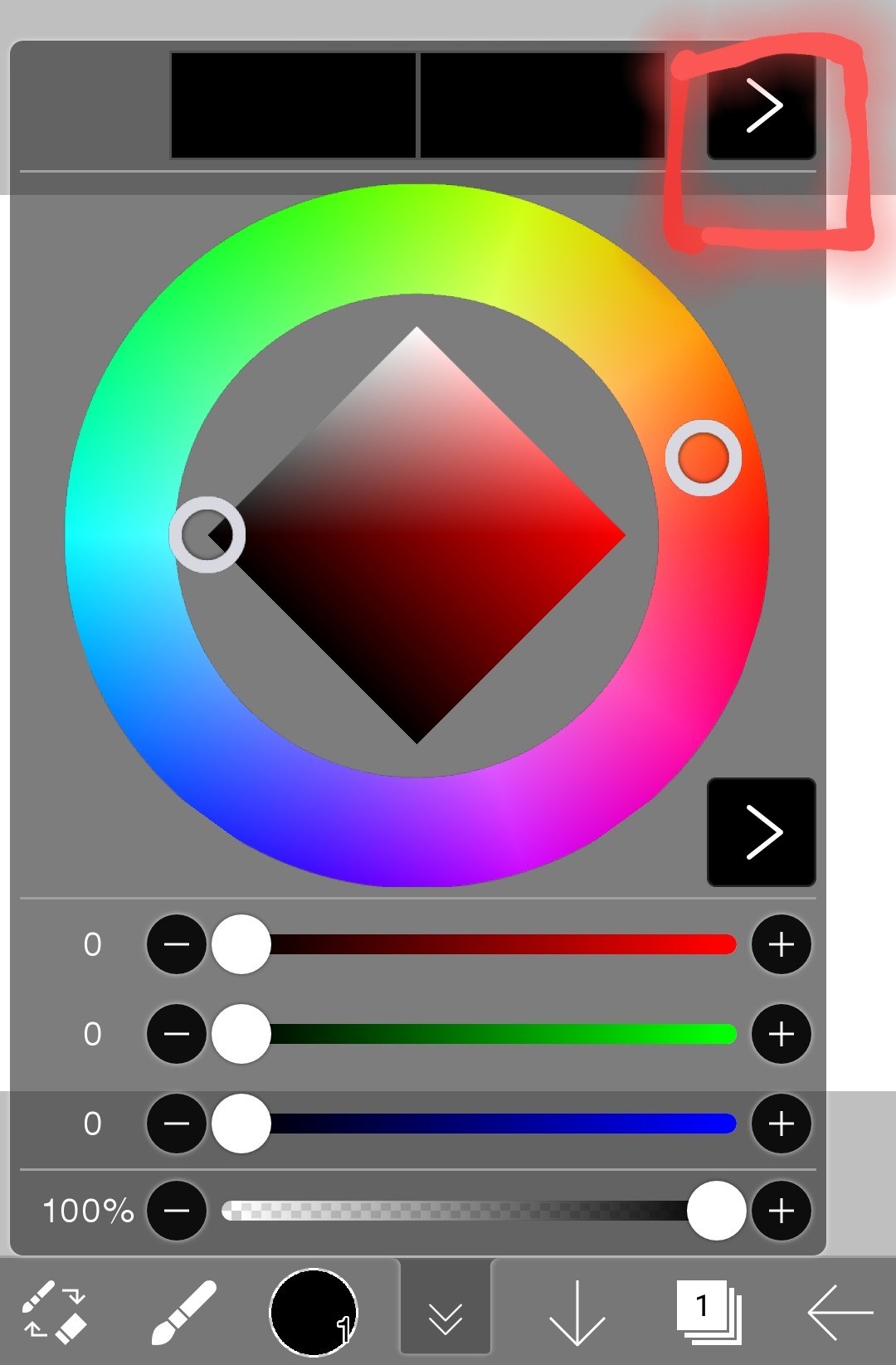
If you touch here
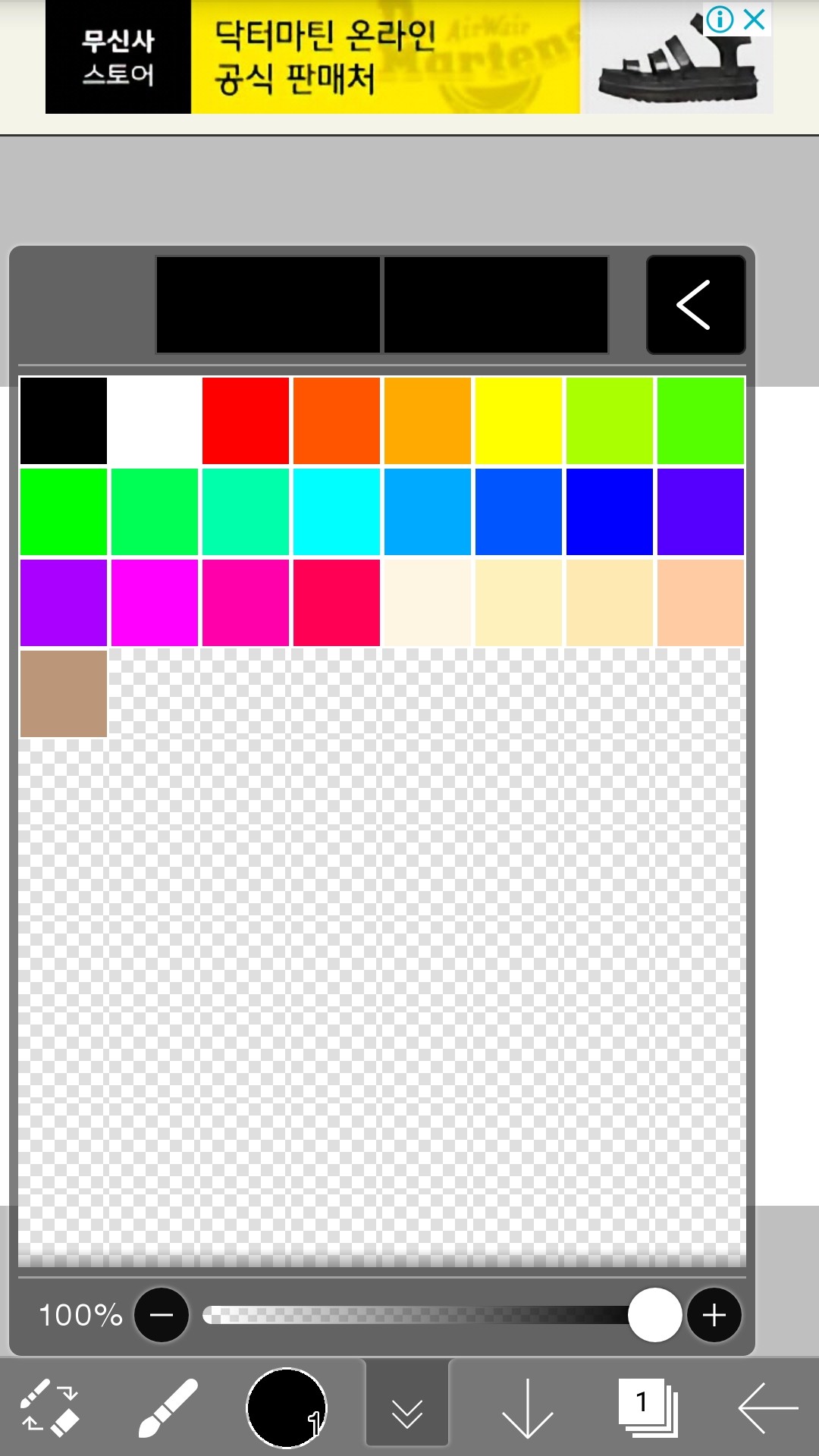
You can also change it like this
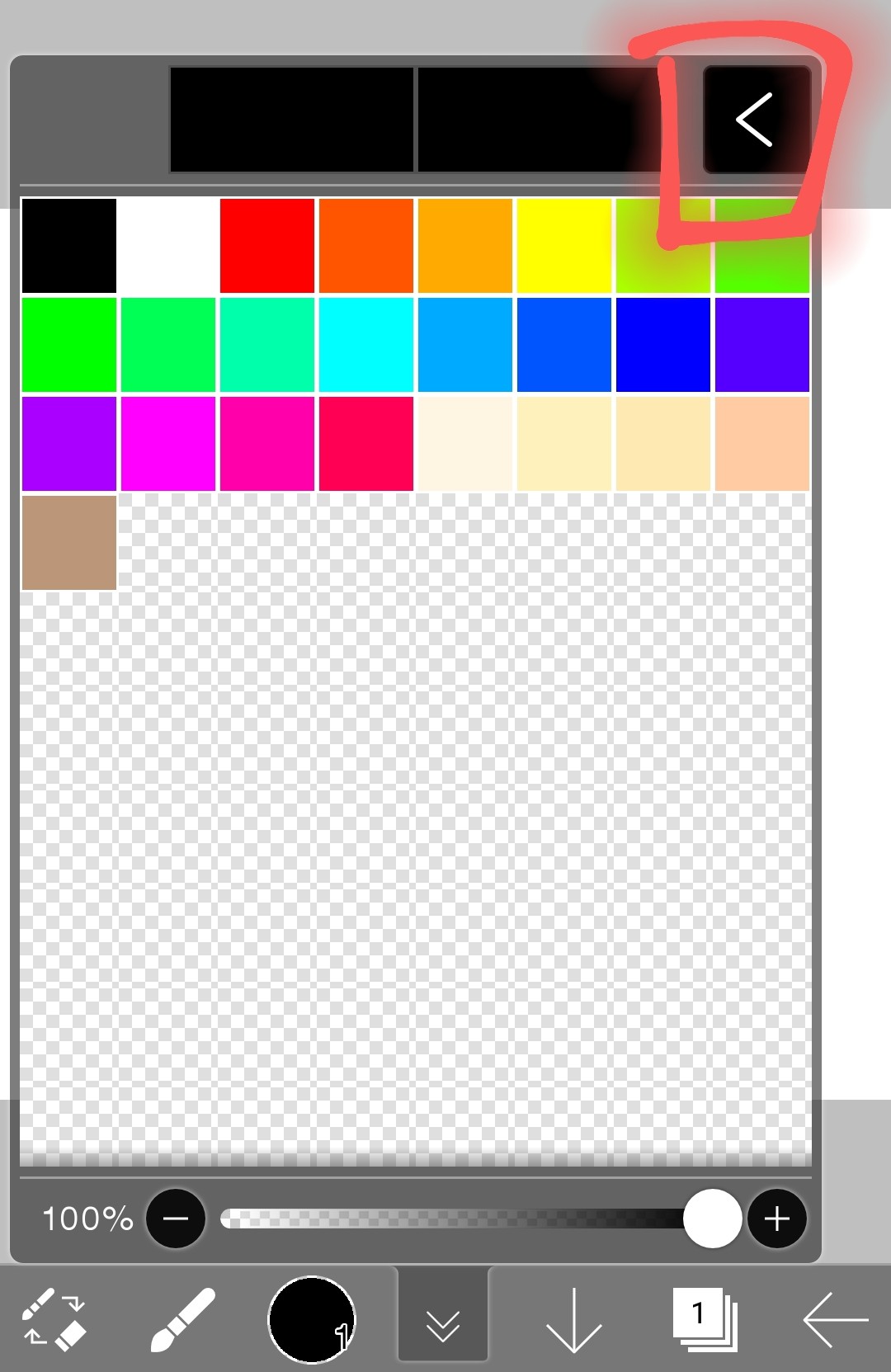
If you touch this again
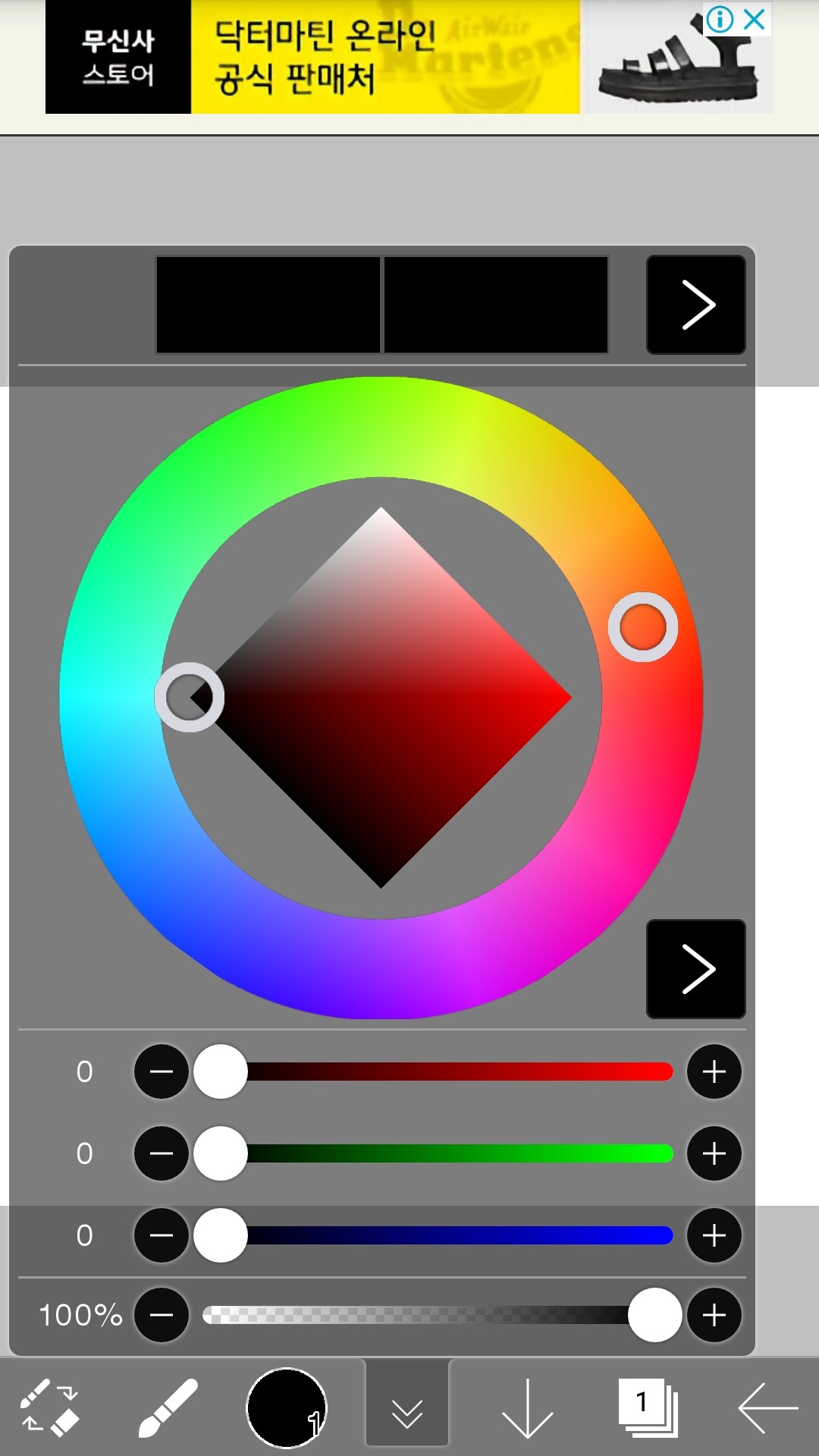
It changes like this
I'm more familiar with this, so I'll explain it this way.
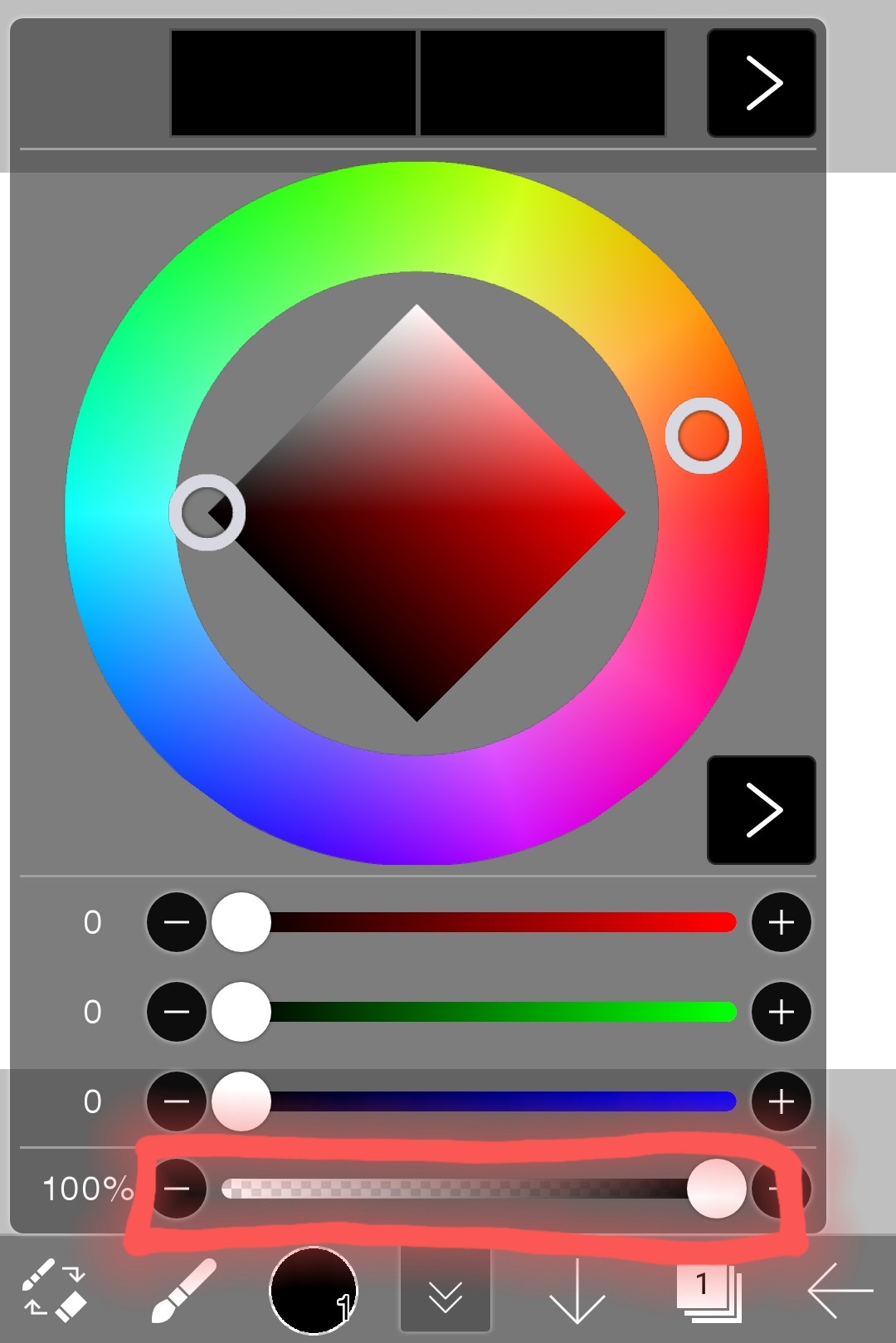
This is opacity. The further to the left you go, the more transparent it becomes.
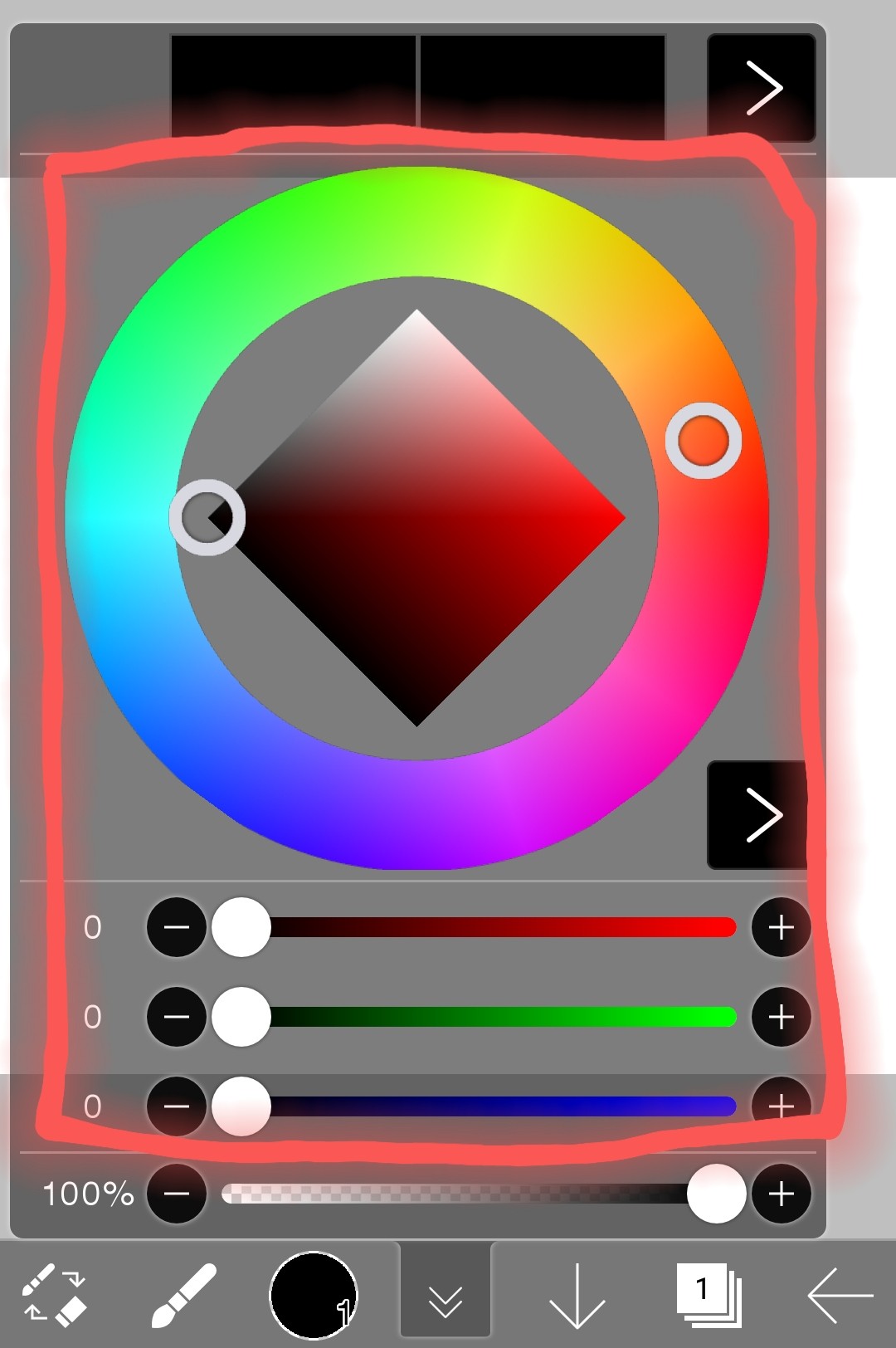 This part is for adjusting the color.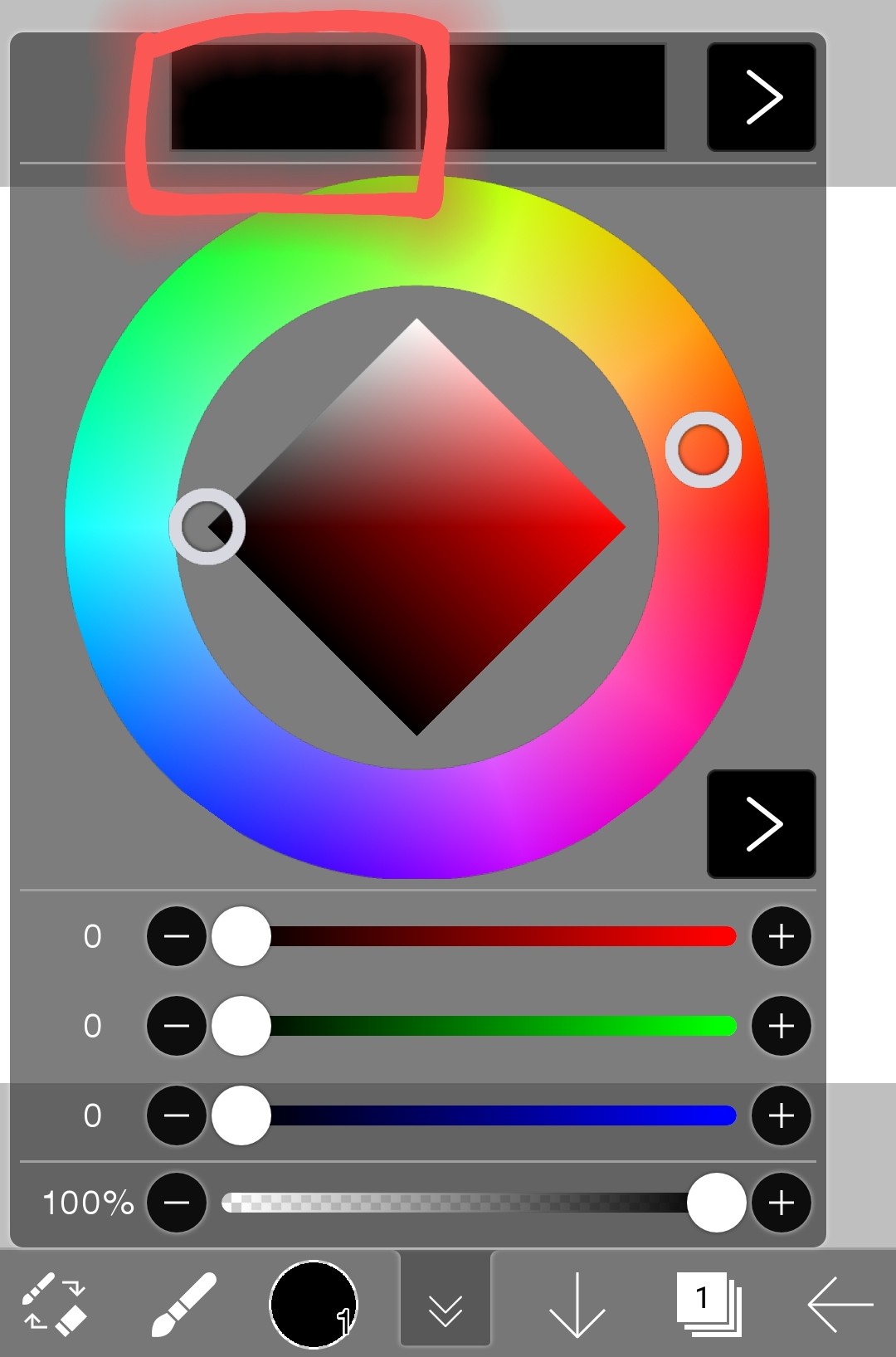
Here you can see the colors I used before
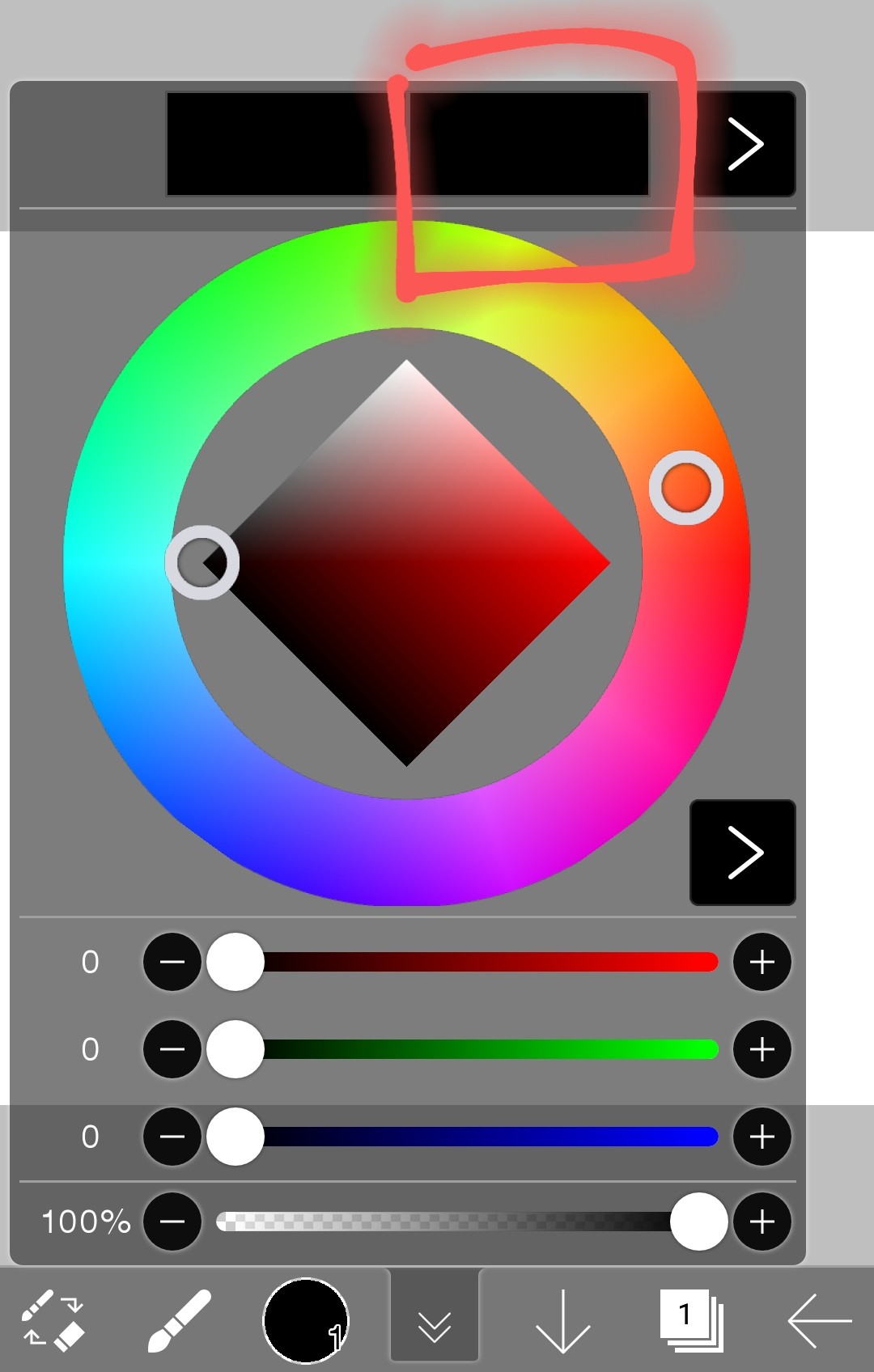
Here you can see the color you are using now
(6) Layer (very basic)
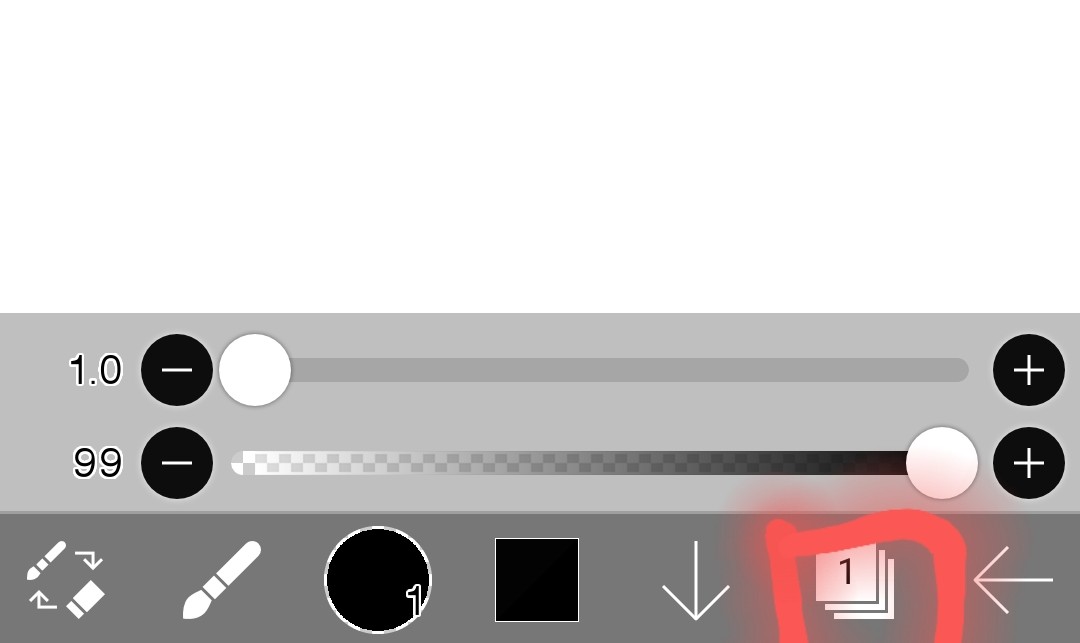
Tap here to view layers
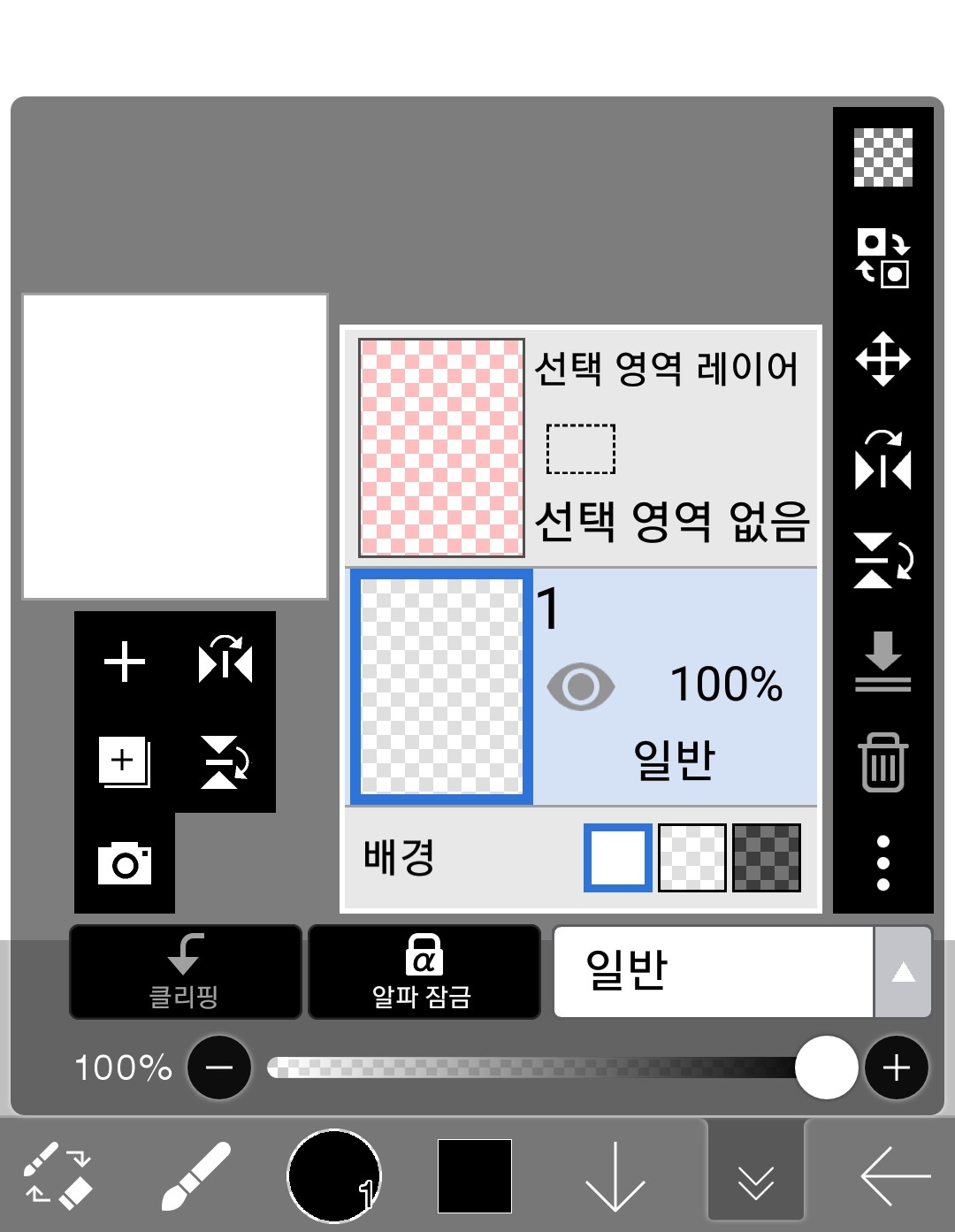
Because this is difficultDevelopmentI will explain in detail in
3. Homework
Try out the things that came out in period 3-1!
4. Lesson preview
3-2 periodInDetailed usage of tools, how to use layersI'll tell you about it
If you found this helpful, please rate it! If you have any questions or comments, please leave a comment! If you want to keep learning, please subscribe!