
Before coloring the title
I'm going to write (of course

I'm going to use Gulpangpang
Go into the font
After changing the background to white
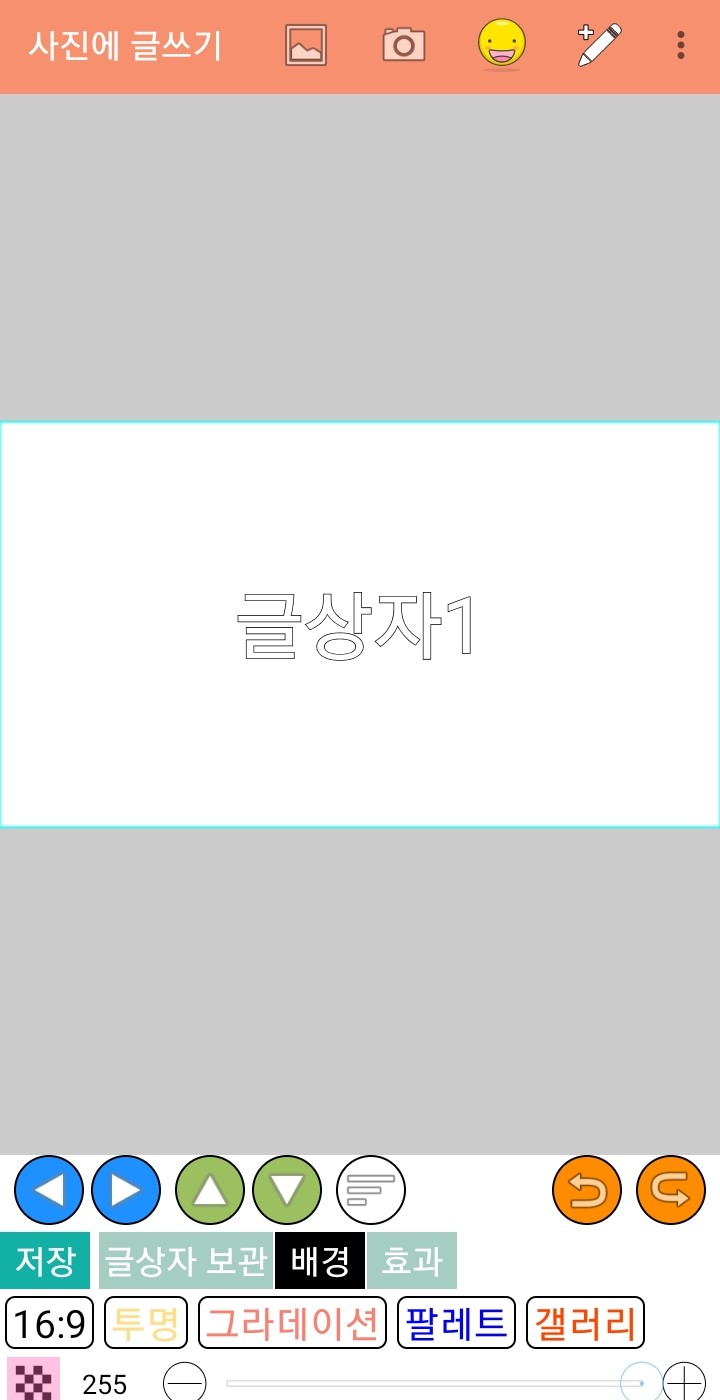
Please enter a title
Please change the font to the font you want.

And the text color is
Please make it black no matter what
Because I colored the background like in the last episode.
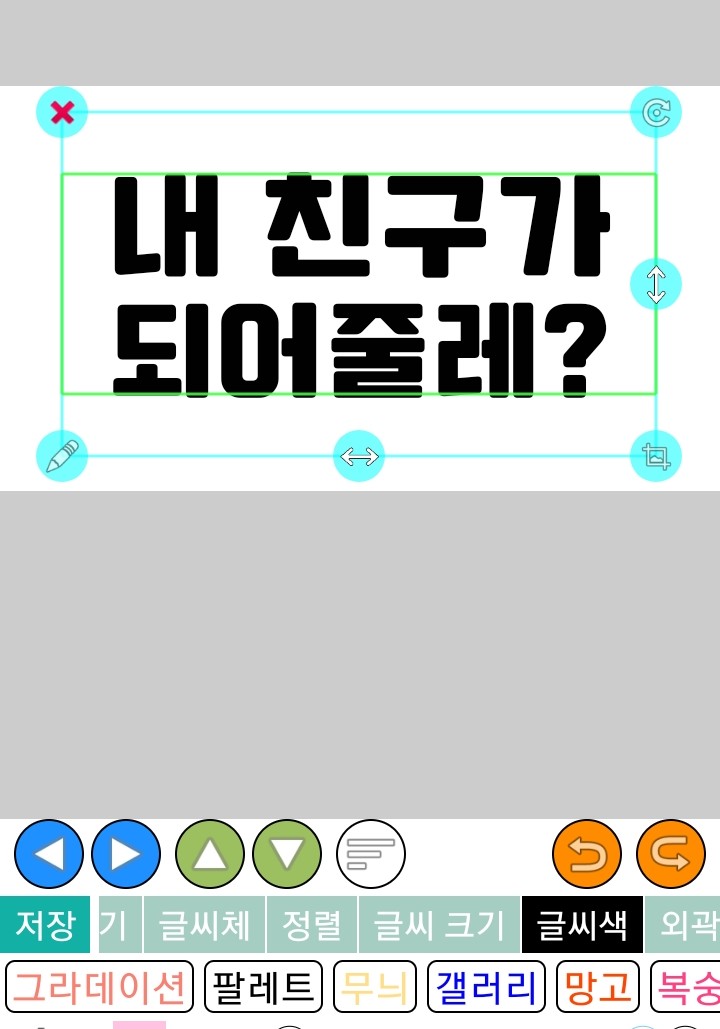
Once you're done, save it and you're done.
Now I'm going to color it.
I'm going to use Color
Come in
Please press plus
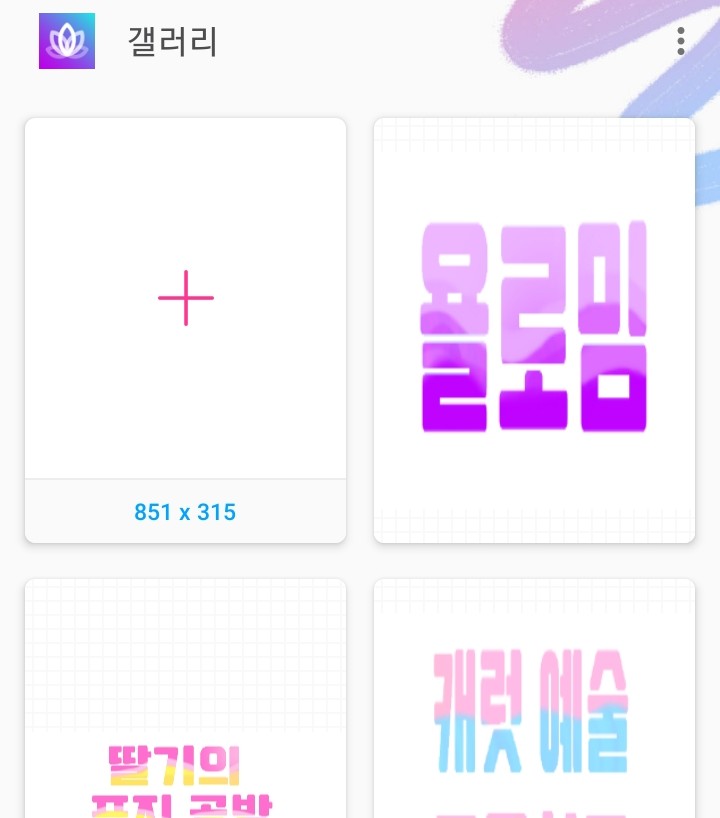
Then it will appear like this
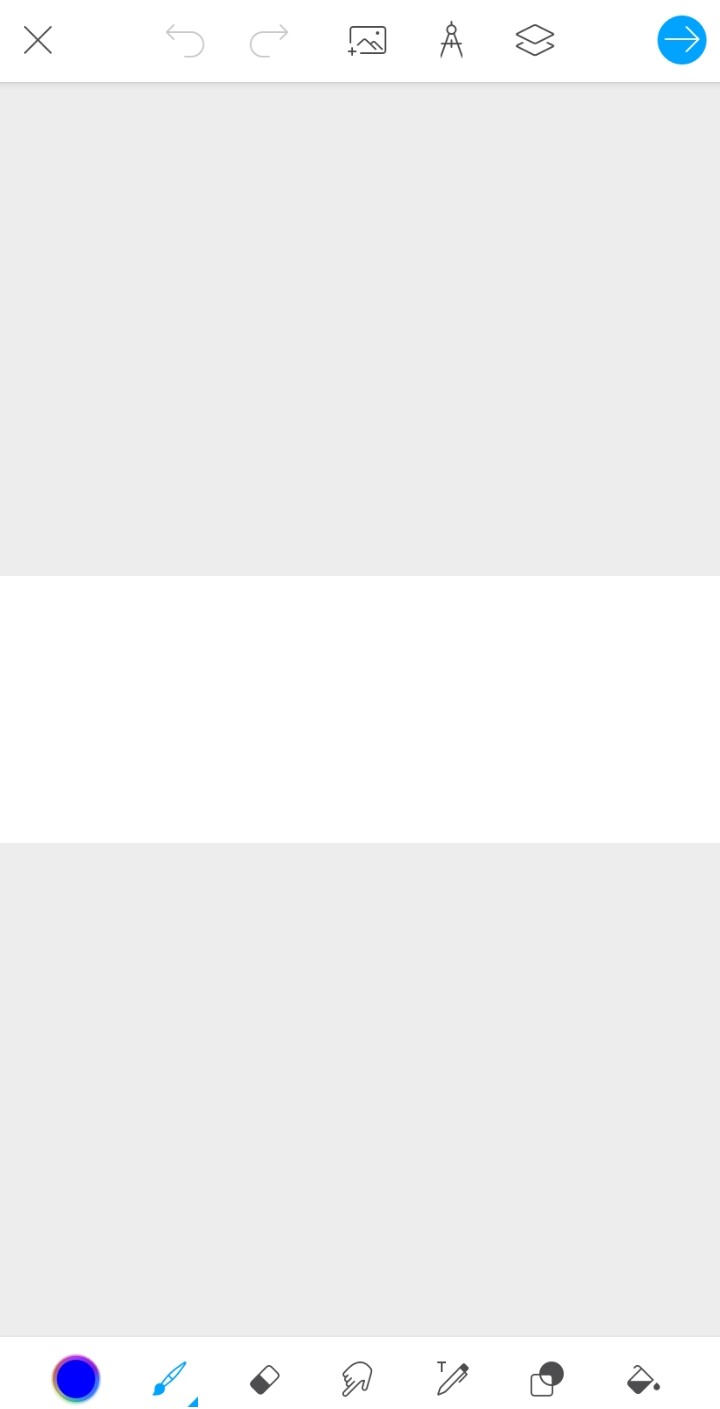
Please click on the photo shape

I saved it from Geulpangpang earlier
Please call me
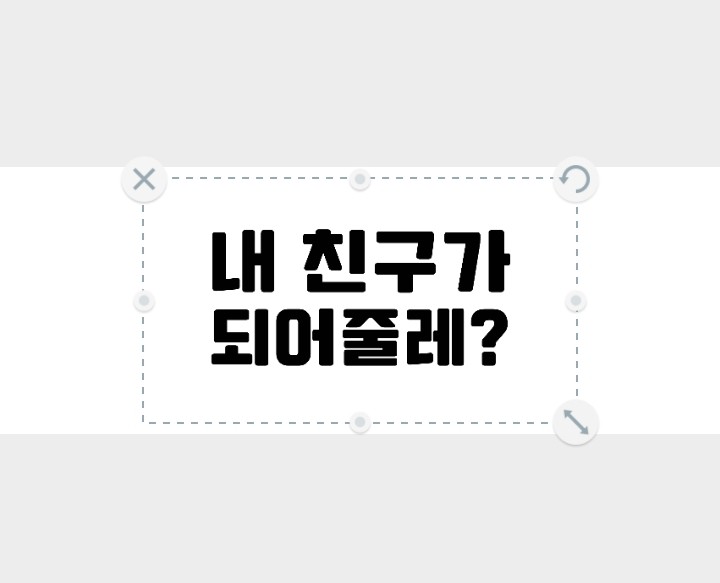
Then at the top
Please click on this square

Then it appears like this
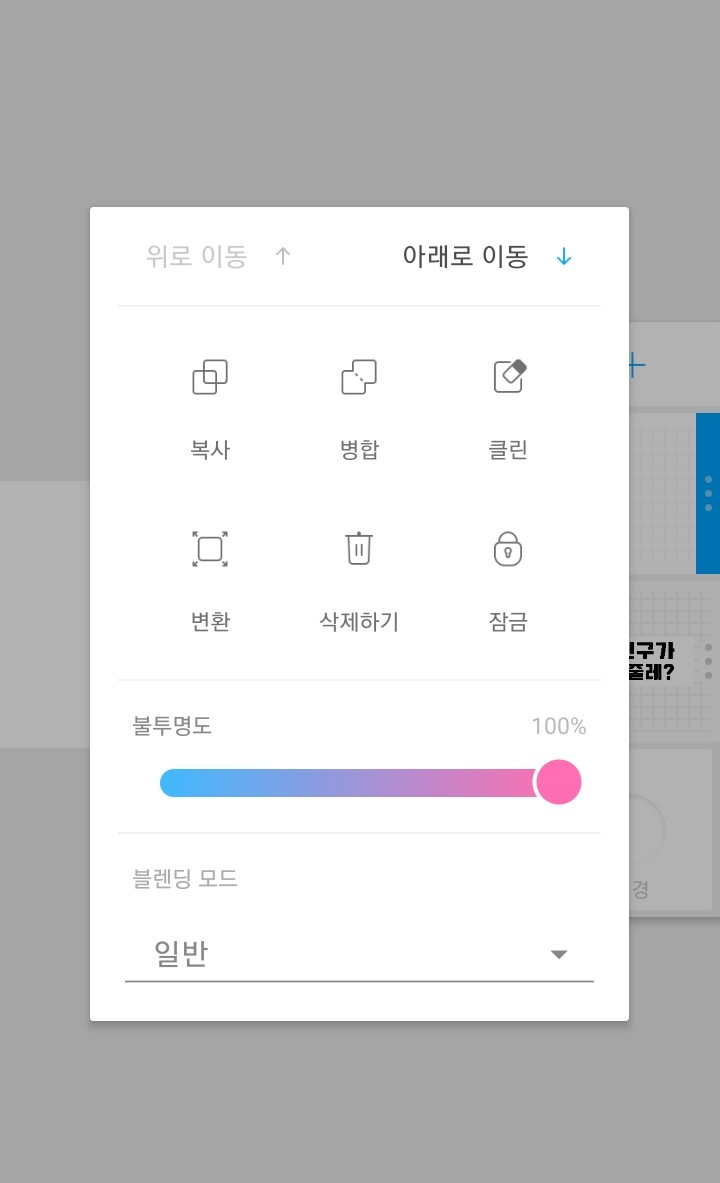
Please change the general to a masterpiece
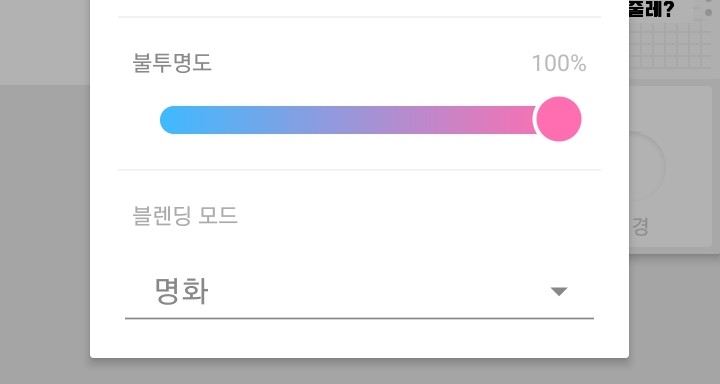
Now in the color you want
You can just paint it as you like.


The coloring is finished!
Please save it

Now the final step
With this app
I'm going to cut the white part.
Come in
Please cut out the white part
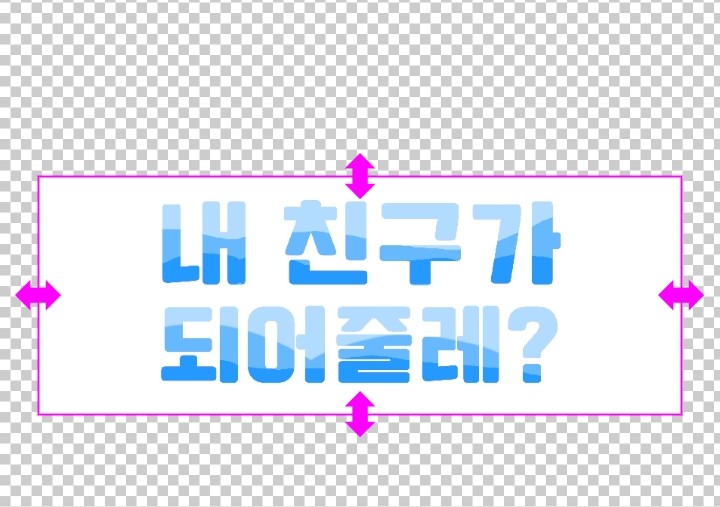
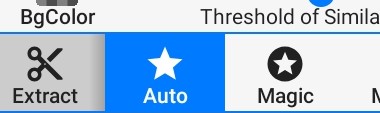
☆Please cut it with Auto
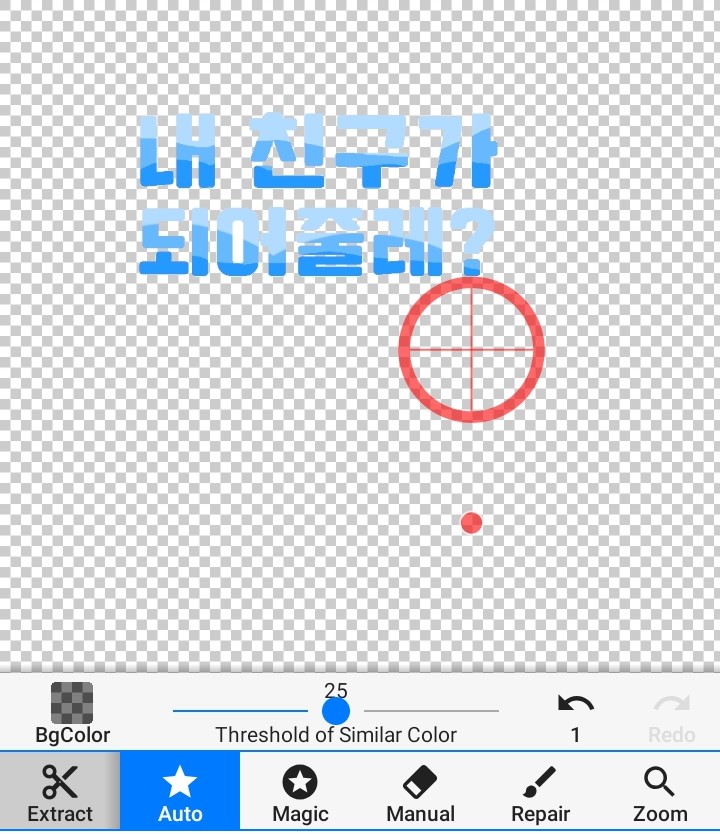
Click Save and you're done.
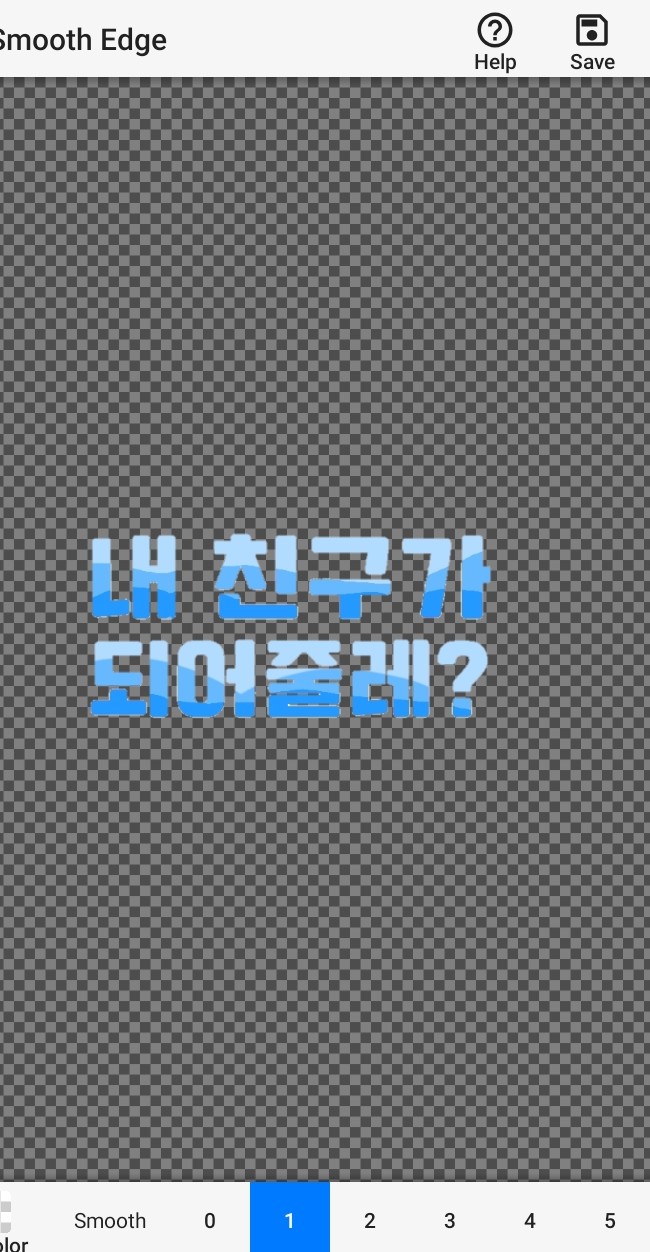

completion
--------
Download font

On Naver
After typing Naver Software in the search bar

Please enter the site

If you go in, it will be like this
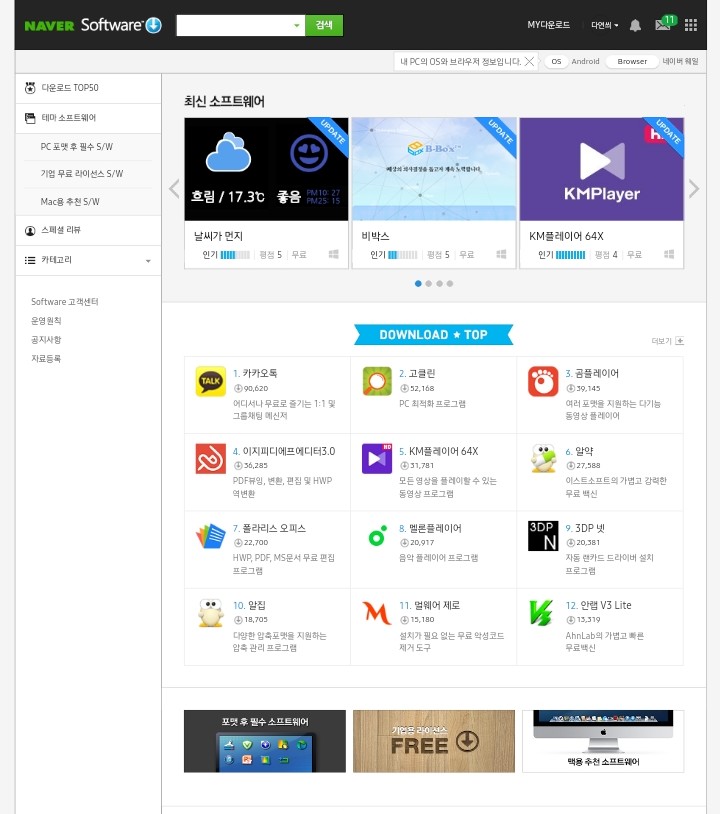
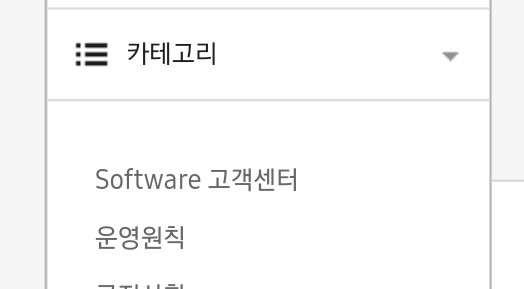
Click on the category on the left
Please enter the font
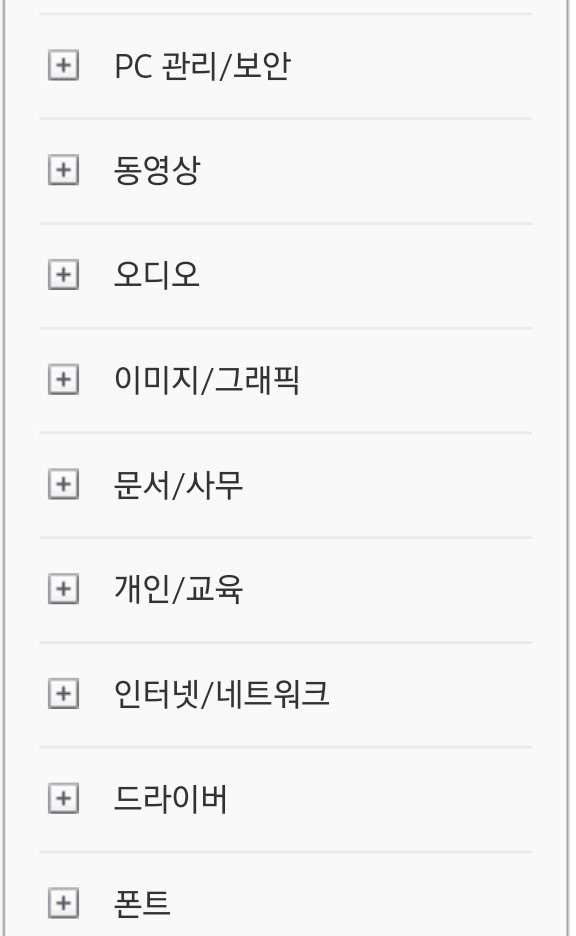
Font = font style
When you go in
There are a lot of fonts
Choose the font you want here
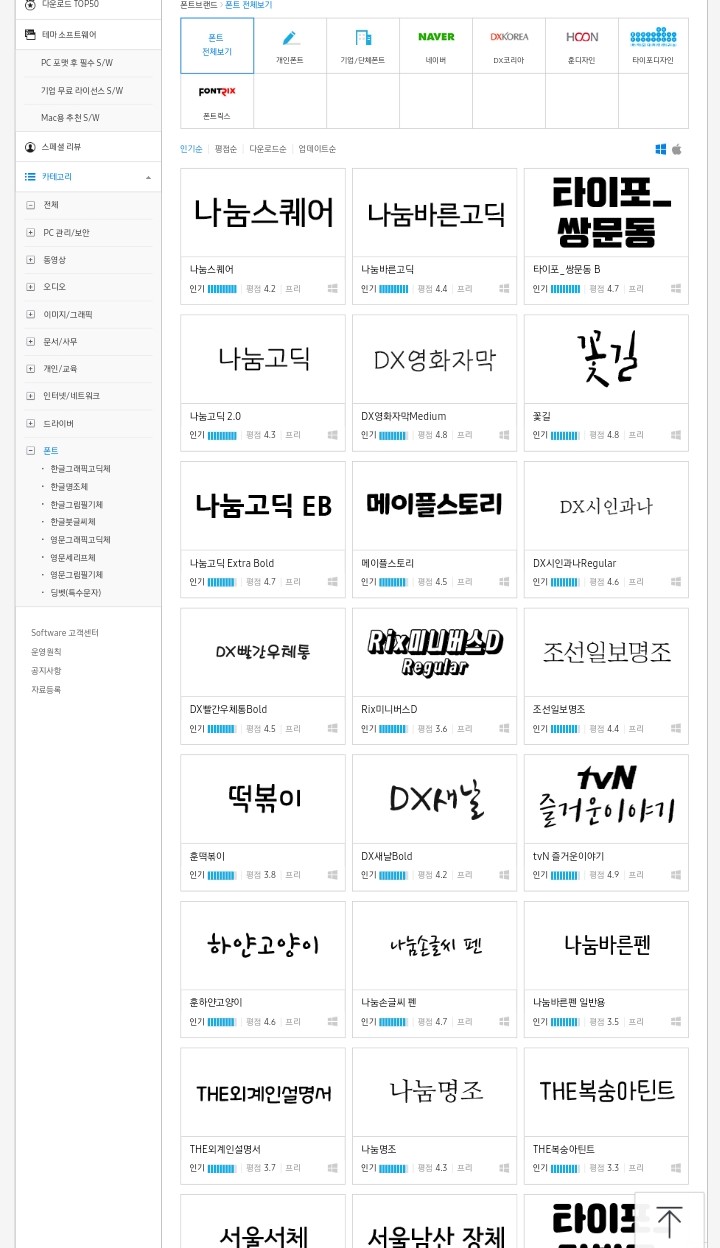
You have chosen, go in
Click Download
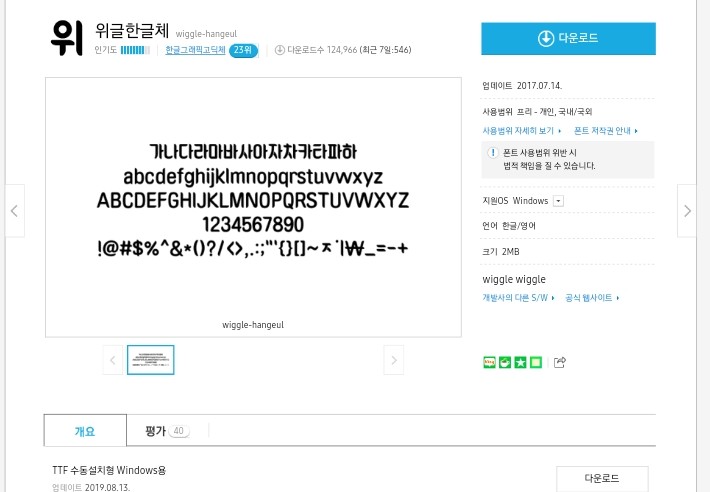
There are a total of 3 download buttons
This is the last download button.

If you downloaded it
It is automatically saved in Gulpangpang.
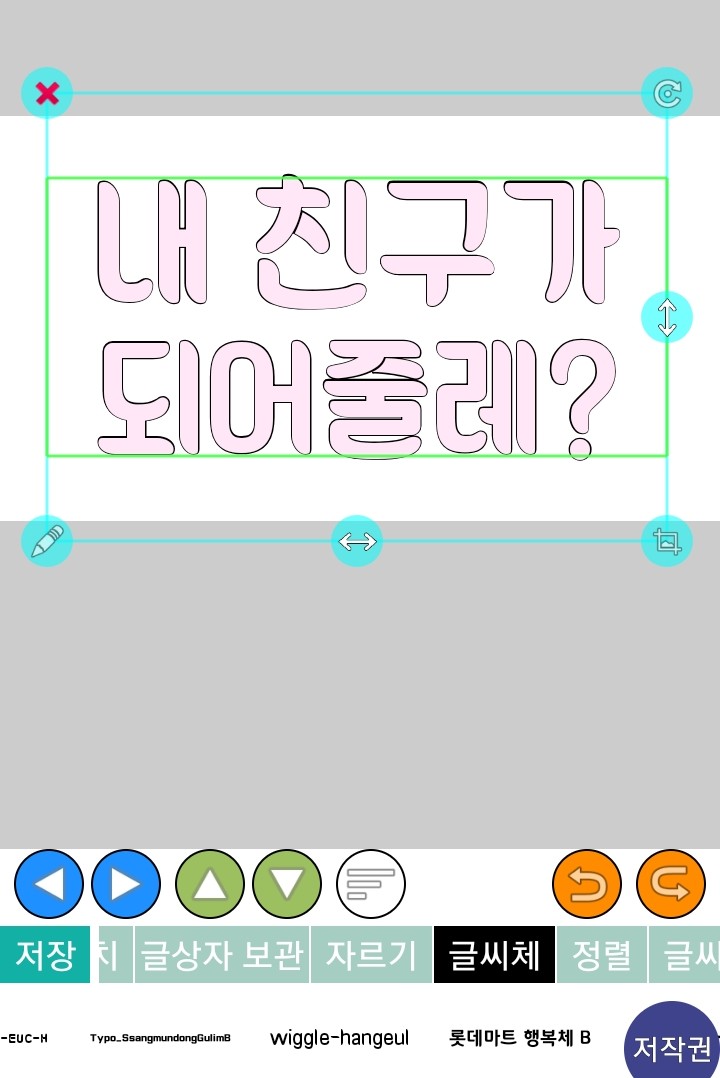
If it's not in the font
There will be a time when you go out and come back in.
End
---------
Hello, this is Strawberry!
Originally, I was angry about making a cover with Ibis today.
I need to upload it, but I need to make a title first.
I think it will be better so I'm uploading it firstㅜㅜ
Please understand!
The app that I will show you how to make a cover is
[Ibis] Making a cover with the app
[PixArt] Making a cover with the app
It is planned
The Korean won goes up more today!
Subscribe🥰 Rating☺️